4. Storage and file systems
A disk is just a long list of numbered blocks. The operating system turns it into the folders, files and drives that you use every day. In this page you will see how a disk is organised, how it is divided into partitions, which file systems you will meet (FAT32, NTFS and ext4) and why journaling can save your data after a power cut. At the end you will put it together in an installation plan.
1. Disks
Sección titulada «1. Disks»Two kinds of disk are common:
| HDD (hard disk drive) | SSD (solid-state drive) | |
|---|---|---|
| Technology | Magnetic platters that spin and a moving head | Flash memory chips, no moving parts |
| Speed | Slow to find data (the head must move) | Very fast, also for random access |
| Weak point | Mechanical wear, shocks | Limited writes per cell (the controller spreads the wear) |
| Fragmentation | Hurts performance | Does not matter |
The physical structure of an HDD is made of platters with two faces. Each face has circular tracks, and each track is divided into sectors. The same track on all the platters forms a cylinder. A sector is the smallest unit the disk can read or write: traditionally 512 bytes, and 4096 bytes in newer disks.
The logical structure is what the OS builds on top. The OS does not work with single sectors but with clusters (Windows) or blocks (Linux): groups of contiguous sectors. The cluster is the smallest unit assigned to a file.
This has a consequence: a file always uses a whole number of clusters, and the free space in its last cluster is wasted (internal fragmentation again). Example with clusters of 4096 bytes:
| File size (bytes) | Clusters | Space used | Wasted |
|---|---|---|---|
| 1,200 | 1 | 4,096 | 2,896 |
| 5,000 | 2 | 8,192 | 3,192 |
| 9,000 | 3 | 12,288 | 3,288 |
| 40,000 | 10 | 40,960 | 960 |
| Total 55,200 | 16 | 65,536 | 10,336 |
With clusters of 32 KiB (32,768 bytes) the same four files need 5 clusters (163,840 bytes) and waste 108,640 bytes. Big clusters waste space with small files; small clusters need more clusters per file and a bigger allocation table. The cluster size is chosen when you format the partition, and the default is usually good.
2. Partitions
Sección titulada «2. Partitions»A partition is a part of a disk that the OS treats as if it were a separate disk. Why divide a disk?
- To install several operating systems on the same disk.
- To separate the system from your data: you can reinstall the system without touching your files.
- To use different file systems.
- To protect the system: a full data partition does not stop the OS.
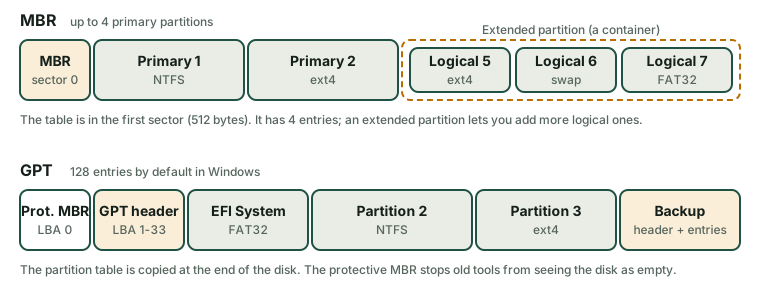
The list of partitions is stored in a partition table at the beginning of the disk. There are two formats.
MBR (Master Boot Record)
Sección titulada «MBR (Master Boot Record)»It appeared in the 1980s and works with the classic BIOS firmware. The first sector of the disk (512 bytes) contains a small boot program, a table with four entries and a signature. Its limits:
- A maximum of four primary partitions. To have more, one primary partition becomes an extended partition, which is a container for any number of logical partitions. The extended partition does not store data itself.
- Partition addresses have 32 bits, so a disk is limited to 2 TiB. A bigger disk can only use the first 2 TiB.
- There is only one copy of the table. If the first sector is damaged, the partitions are lost.
GPT (GUID Partition Table)
Sección titulada «GPT (GUID Partition Table)»It is the modern format, used with UEFI firmware.
- The disk has a protective MBR in the first sector, so old tools see that the disk is not empty.
- A GPT header and the partition entries (128 by default in Windows) come next; a backup copy is stored at the end of the disk.
- All partitions are the same kind (there is no extended or logical partition) and each has a unique identifier (GUID).
- It supports disks of many terabytes.
- Windows boots from a GPT disk only when the computer uses UEFI. Windows 11 requires it.
| MBR | GPT | |
|---|---|---|
| Firmware | BIOS (legacy) | UEFI |
| Partitions | 4 primary, or 3 primary + 1 extended with logical ones | Up to 128 in Windows, all the same type |
| Maximum disk | 2 TiB | Practically unlimited |
| Table copies | 1 | 2 (start and end of the disk) |
A UEFI system needs a small EFI System Partition (ESP, formatted FAT32, usually 100 MB to 1 GB) where the boot loaders live.
Names of partitions
Sección titulada «Names of partitions»- Windows gives a drive letter to each volume:
C:,D:… - Linux has a single tree. Each disk appears as a device (
/dev/sda,/dev/nvme0n1) and its partitions are numbered (/dev/sda1,/dev/nvme0n1p1). To use a partition you mount it in a folder, for example/homeor/media/usb.
In Linux you can also use LVM (Logical Volume Manager). You join one or more disks or partitions (physical volumes) in a volume group and then cut logical volumes from it. The advantage is that you can extend a logical volume later, even by adding a new disk, without moving data.
3. File systems
Sección titulada «3. File systems»A partition is empty until you format it with a file system: the set of rules and data structures that the OS uses to store and find files. A file system:
- organises files in folders (a tree that starts at the root);
- keeps track of which clusters belong to each file and which are free;
- stores the attributes (metadata) of every file: name, size, dates (created, modified, accessed), owner and permissions, and flags such as read-only or hidden;
- (in some systems) protects data with permissions, compression, encryption or a journal.
Different file systems keep their location information in different ways:
- FAT32 has a File Allocation Table. It is a table with one entry for each cluster. A file is a chain: the directory entry gives the first cluster, and the table says which cluster comes next. For example, a file in clusters 5, 6 and 9 has the chain 5 → 6 → 9 → end. There are two copies of the table.
- NTFS has the Master File Table (MFT), with at least one record for every file or folder. Very small files can be stored inside their own record.
- ext4 uses inodes: one small structure per file with its attributes and the location of its data (in extents, ranges of contiguous blocks). The name of the file is stored in the directory, not in the inode.
Comparison
Sección titulada «Comparison»| FAT32 | exFAT | NTFS | ext4 | |
|---|---|---|---|---|
| Main system | Everything (old standard) | Windows, macOS, Linux | Windows | Linux |
| Maximum file | 4 GiB − 1 byte | Very large | Limited by the volume | 16 TiB |
| Maximum volume | 2 TiB (Windows formats up to 32 GiB with its own tool) | Very large | Very large | 1 EiB |
| Permissions | No | No | Yes (ACL) | Yes (Unix and ACL) |
| Journal | No | No | Yes (metadata) | Yes |
| Names | Not case-sensitive | Not case-sensitive | Not case-sensitive in Windows | Case-sensitive |
| Typical use | Small USB drives, SD cards, EFI partition | Big USB drives and SD cards for several systems | Windows system and data disks | Linux system and data disks |
How to choose, with a few examples:
- A USB drive that you use in Windows, macOS and Linux and that has files bigger than 4 GiB: exFAT.
- A USB for a camera, a TV or an old device: FAT32.
- The Windows system partition, or a Windows data disk with permissions: NTFS.
- The Linux system partition: ext4.
Compatibility between systems is not complete: Windows cannot read ext4 without extra software, and macOS reads NTFS but does not write it by default. Linux can read and write NTFS, exFAT and FAT32.
4. Journaling
Sección titulada «4. Journaling»Saving a file needs several writes: the data blocks, the table with the free space and the directory entry. If the power goes off in the middle, the file system can be left inconsistent: a directory entry that points to nothing, or blocks marked as free and used at the same time.
Without a journal (FAT32, exFAT, old ext2), the system must check the whole disk after a bad shutdown (fsck in Linux, chkdsk in Windows). On a big disk this can take a long time, and it does not always repair everything.
A journaling (or transactional) file system keeps a journal: a small log area. Before changing the real structures, it writes in the journal what it is going to do. After that, it makes the changes and marks the entry as finished.
- Write the planned change in the journal.
- Commit: mark the entry as complete.
- Apply the change to the real structures.
- Free the entry in the journal.
After a power cut, at the next boot the system reads the journal:
- Entries that were committed but not applied are replayed (repeated).
- Entries that were not committed are discarded, as if they had never started.
The disk is consistent again in seconds, without checking everything. The price is some extra writes.
Consequence for choosing a file system: for the system disk and for data that matters, choose a journaling file system (NTFS or ext4). For removable drives in FAT32 or exFAT, always use Safely remove hardware or umount before pulling the cable.
5. Useful commands and tools
Sección titulada «5. Useful commands and tools»| Task | Linux | Windows |
|---|---|---|
| See disks and partitions | lsblk, lsblk -f (with file systems), sudo fdisk -l |
Disk Management (diskmgmt.msc), diskpart |
| Free and used space | df -h (by file system), du -sh folder (one folder) |
File Explorer → This PC, Settings → Storage |
| Graphic partition editor | GParted | Disk Management |
| Create a file system | sudo mkfs.ext4 /dev/sdb1 |
Format in Explorer, or format |
| Check and repair | sudo fsck /dev/sdb1 (unmounted) |
chkdsk D: /f |
6. Optimising storage
Sección titulada «6. Optimising storage»- Keep free space. A full disk is slow and risky. Aim for at least 10–15 % free on the system partition.
- Clean up. Use Storage Sense or Disk Cleanup in Windows, and in Linux
du -sh *to find the big folders andsudo apt cleanto delete downloaded packages (Debian and Ubuntu). - HDD: defragment. When a file is stored in many pieces, the head needs more movements. Windows does it automatically (Defragment and Optimize Drives). ext4 fragments very little and rarely needs it.
- SSD: never defragment; use TRIM. The
TRIMcommand tells the SSD which blocks are free so that it can prepare them. Windows does it by itself. In Linux,sudo fstrim -avruns it once, and most distributions run it every week. - Choose the right cluster size and file system for the use: many small files or a few huge ones.
- Align partitions. Modern tools start partitions at 1 MiB, which is right for SSDs and 4 KiB sectors.
- Watch the health. If a disk starts to fail (strange noises, many read errors), back up first. In Linux,
smartctl -a /dev/sda(packagesmartmontools) shows the SMART report.
7. The installation plan
Sección titulada «7. The installation plan»Before you install an operating system, write a plan. It avoids errors and it is evidence of your work. These are the points to cover:
| Point | Questions to answer |
|---|---|
| Purpose and users | What will the computer be used for? Who uses it? |
| Hardware | Are the CPU, RAM and disk enough? Are there drivers? BIOS or UEFI? |
| Operating system | Which one, which edition and version, 32 or 64 bits? Which licence? |
| Disk | Which partition table? Which partitions, sizes and file systems? Is there swap? Is there dual boot? |
| Network and name | Computer name, domain or workgroup, IP address (automatic or fixed) |
| Users and security | Administrator account, other accounts, passwords, firewall, updates |
| Software | Which applications and drivers will you install after the system? |
| Backup | What will you copy before the installation? How will you go back if it fails? |
| Checks | How will you test that everything works? |
Example. A virtual machine for Ubuntu Desktop, with 4 GiB of RAM and a 40 GiB virtual disk (UEFI):
| Partition | Size | File system | Mount point |
|---|---|---|---|
| EFI System Partition | 512 MiB | FAT32 | /boot/efi |
| Root | 25 GiB | ext4 | / |
| Swap | 2 GiB | swap | (none) |
| Data | about 12.5 GiB | ext4 | /home |
Ask the manufacturer for the current minimum requirements. As a reference, Windows 11 requires a 64-bit CPU, 4 GB of RAM, 64 GB of storage, UEFI with Secure Boot and a TPM 2.0 chip, and Ubuntu Desktop recommends 4 GB of RAM and 25 GB of disk.
Comprueba lo aprendido
Sección titulada «Comprueba lo aprendido»-
A disk uses MBR. You already have three primary partitions and need three more. How can you do it?
Answer
MBR allows only four primary partitions. Convert (or create) the fourth one as an extended partition and create the three new partitions as logical partitions inside it.
-
A file of 10,000 bytes is saved on a file system with 4096-byte clusters. How many clusters does it use and how much space is wasted?
Answer
10,000 / 4096 = 2.44, so it needs 3 clusters (12,288 bytes). The waste is 12,288 − 10,000 = 2,288 bytes.
-
You want to copy a 6 GiB video to a USB drive that you will also use on a Mac. Which file system do you choose and why not FAT32?
Answer
exFAT. FAT32 cannot store a file larger than 4 GiB, and exFAT works in Windows, macOS and Linux. NTFS is not written by macOS by default and ext4 is not read by Windows.
-
Explain in two sentences why a journaling file system recovers faster after a power cut.
Answer
Before changing the disk structures, it writes the planned change in a journal. After a failure, it only reads the journal and repeats the finished entries or discards the unfinished ones, instead of checking the whole disk.
-
Why should you not defragment an SSD, and what do you use instead?
Answer
An SSD has no moving head, so fragmentation does not slow it, and extra writes wear it. You use TRIM, which tells the SSD which blocks are free.
Glossary
Sección titulada «Glossary»| English | Castellano |
|---|---|
| disk / hard disk (HDD) / solid-state drive (SSD) | disco / disco duro / unidad de estado sólido |
| platter, track, sector, cylinder | plato, pista, sector, cilindro |
| cluster / block | clúster / bloque |
| partition | partición |
| partition table | tabla de particiones |
| primary / extended / logical partition | partición primaria / extendida / lógica |
| MBR / GPT | MBR / GPT |
| boot loader | gestor de arranque |
| mount point | punto de montaje |
| format | formatear |
| file system | sistema de archivos |
| file attributes | atributos del archivo |
| journaling | registro por diario (journaling) |
| journal | diario |
| inode | inodo |
| defragmentation | desfragmentación |
| installation plan | plan de instalación |
Esta web no usa cookies ni recoge datos personales. Tu navegador solo guarda, en tu propio equipo, algunas preferencias: el tema claro u oscuro, el estado del menú y, en los laboratorios, la última pestaña abierta y el tamaño de letra.