3. Your first virtual machine
Creating a VM is like choosing the parts of a computer: you decide how many cores, how much memory and how big a disk it has. The difference is that you can change your mind in seconds. This page shows you the process in VirtualBox and the reasons behind each choice.
1. VirtualBox
Sección titulada «1. VirtualBox»Oracle VirtualBox is a Type 2 hypervisor that runs on Windows, Linux and macOS with an Intel processor. The program is free and open source, and it has a graphical interface (the VirtualBox Manager) and a command-line tool (VBoxManage).
Installing it
Sección titulada «Installing it»| Host | How |
|---|---|
| Windows | Download the installer from the official VirtualBox website, run it and accept the default options. Windows may ask you to install network drivers: accept. |
| Ubuntu / Debian / LliureX | sudo apt install virtualbox, or add the repository of Oracle to get the newest version. |
| macOS (Intel) | Download the disk image from the official website and run the installer. You may have to allow the software in the system security settings. |
You can check that it works with:
VBoxManage --versionOn the official website you will also find the Extension Pack, a separate add-on with extra features (for example USB 2.0 and 3.0 support). It has a different licence from VirtualBox: it is free for personal, educational and evaluation use, but companies need to pay for it. Do not install it unless you need it.
The Manager
Sección titulada «The Manager»When you open VirtualBox, the window shows a list of your VMs on the left and the details and buttons on the right. The most important buttons are New, Settings, Start and, when a VM is selected, the Snapshots tool.
2. Creating a VM
Sección titulada «2. Creating a VM»You need three things: the name and type of the operating system, the amount of hardware, and an installation source (usually an ISO image, a file that contains the content of an installation disc).
Steps in the New wizard (VirtualBox 7; the texts can change a little in other versions):
- Name and operating system. Write a descriptive name, such as
SOM-U2-Ubuntu. Choose the ISO file, or choose the Type and Version yourself. This choice is important: VirtualBox uses it to select safe default settings. If you choose Ubuntu (64-bit) and then install Windows, it may work badly. - Hardware. Choose the memory (RAM) and the number of processors (vCPU). Look at the requirements of the guest (table below). The Enable EFI option makes the VM start with UEFI instead of the old BIOS.
- Virtual hard disk. Choose the size of the disk and whether the space is reserved now or later (see section 3).
- Summary. Check everything and finish.
You will see the new VM in the list. If you did not choose an ISO in the first step, open Settings → Storage, click the empty optical drive and select the ISO file. Then press Start.
How much hardware does the guest need?
Sección titulada «How much hardware does the guest need?»Always read the requirements of the guest system, then check that your host can give them. These are typical minimum values of the official documentation of each system:
| Guest | vCPU | RAM | Disk | Other |
|---|---|---|---|---|
| Ubuntu 24.04 Desktop | 2 | 4 GB | 25 GB | |
| Windows 11 | 2 | 4 GB | 64 GB | UEFI with Secure Boot and TPM 2.0 |
For Windows 11, VirtualBox 7 can provide a virtual TPM and EFI. When you choose the type Windows 11 (64-bit), check in Settings → System that EFI and the TPM are enabled.
A VM compared with a physical computer
Sección titulada «A VM compared with a physical computer»| In a physical computer you choose… | In VirtualBox you choose… |
|---|---|
| The processor and cores | System → Processor: number of vCPUs |
| The memory modules | System → Motherboard: base memory |
| The disk | Storage: a virtual disk file |
| The firmware | System → Motherboard: EFI on or off |
| The graphics card | Display: video memory |
| The network card | Network: adapter and mode |
| The DVD drive | Storage: an ISO file or the host drive |
| The boot order | System → Motherboard: boot order |
Do not over-assign
Sección titulada «Do not over-assign»The host keeps working while the VMs run, so you must leave resources for it.
- Memory: give the guest what it needs, not more. As a rule, leave at least 2-3 GB for the host and never let the total of the running VMs eat the memory of the host. VirtualBox shows a green zone and a red zone on the memory slider: stay in the green.
- vCPU: do not give a VM more virtual processors than your host has cores. In most labs 1 or 2 vCPUs are enough. More vCPUs do not always make a VM faster; they can even make it slower.
- Disk: the virtual disk will live on the host disk, so check the free space.
3. Virtual disks
Sección titulada «3. Virtual disks»The disk of a VM is a file on the host. VirtualBox supports several formats:
| Format | Origin | Comment |
|---|---|---|
| VDI | VirtualBox | The default format |
| VMDK | VMware | Also used in OVA packages |
| VHD | Microsoft | Used by Hyper-V and Windows |
The format is not the most important decision; the allocation is:
| Dynamically allocated | Fixed size | |
|---|---|---|
| Space used on the host | Starts small and grows as the guest writes data | All the space is reserved at creation |
| Creation | Instant | It takes some time |
| Speed | Usually a bit lower, mostly while it grows | More predictable |
| Risk | The host can run out of space if all disks grow | None, the space is already yours |
| Typical use | Classroom and tests | Servers, benchmarks |
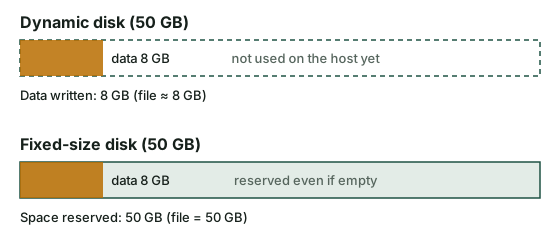
A dynamic disk of 50 GB that contains 8 GB of data uses about 8 GB on the host. But the file does not shrink by itself when the guest deletes files. To recover the space you have to compact the disk with a special tool.
4. Networking
Sección titulada «4. Networking»Each VM has up to four virtual network adapters. Each one works in a mode, which decides who the VM can talk to. This is probably the setting that gives most problems, so learn it well.
| Mode | What it does | Typical use |
|---|---|---|
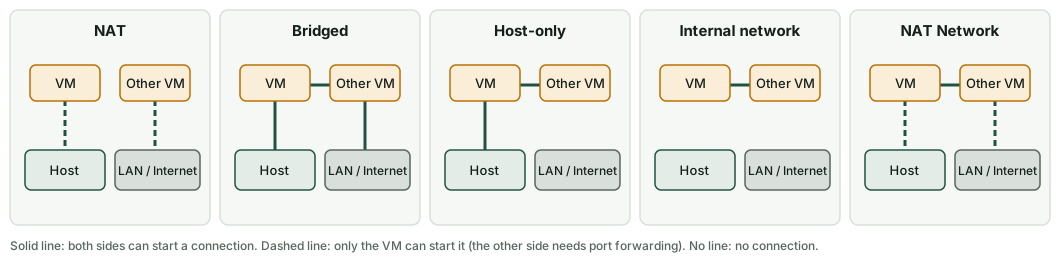
| NAT | The VM shares the IP address of the host. It can go out to the Internet, but nobody from outside can start a connection to it (unless you add port forwarding). Each VM is alone in its own private network. | Default. Browsing and updates |
| Bridged adapter | The VM connects to the real network through the network card of the host and gets its own address, as if it were another physical computer. | A server that other computers must reach |
| Host-only adapter | A private network that only includes the host and the VMs. No Internet. | A safe lab where the host connects to the VMs |
| Internal network | A private network that only includes the VMs with the same network name. Even the host is outside. | Fully isolated labs |
| NAT Network | Like NAT, but several VMs share one private network and can talk to each other and to the Internet. | VMs that must see each other and also go out |
Who can talk to whom:
| Mode | VM → Internet | VM → host | Host → VM | VM ↔ VM | Rest of LAN → VM |
|---|---|---|---|---|---|
| NAT | Yes | Yes | Port forwarding | No | Port forwarding |
| Bridged | Yes | Yes | Yes | Yes | Yes |
| Host-only | No | Yes | Yes | Yes | No |
| Internal | No | No | No | Yes | No |
| NAT Network | Yes | Yes | Port forwarding | Yes | Port forwarding |
The MAC address
Sección titulada «The MAC address»Every network card has a MAC address that must be unique in the local network. When a VM is cloned or imported from an appliance, it may keep the same MAC as the original. Two machines with the same MAC in the same network cause strange connection problems. VirtualBox lets you generate new MAC addresses when you clone or import. Always use it in a classroom.
5. The VM and the host
Sección titulada «5. The VM and the host»A VM is not “inside” the host in a magical way. It is a set of files and a process:
- The configuration file (
.vbox) describes the virtual hardware. - The disk files (
.vdi, …) contain the data. - When the VM runs, VirtualBox is a process on the host that uses a part of its CPU and memory.
- If you close the window with the VM running, you can choose to save the state, send the shutdown signal or power off. Powering off is like pulling the plug: it can damage the guest file system.
You can control a VM from the terminal with VBoxManage:
VBoxManage list vms # all registered VMsVBoxManage list runningvms # VMs that are runningVBoxManage showvminfo "SOM-U2-Ubuntu" # full configurationVBoxManage modifyvm "SOM-U2-Ubuntu" --memory 2048 --cpus 2VBoxManage startvm "SOM-U2-Ubuntu"The VM must be powered off to change the memory or the number of processors.
Check what you have learned
Sección titulada «Check what you have learned»-
A classmate creates a Windows 11 VM with 2 GB of RAM and a 20 GB disk and it does not install. Why?
Answer
It does not meet the minimum requirements of Windows 11 (4 GB of RAM, 64 GB of disk, UEFI and TPM 2.0). The VM needs more memory and disk and EFI and TPM enabled.
-
What is the difference between a dynamically allocated disk and a fixed-size disk? Which one needs more space on the host at the beginning?
Answer
A dynamic disk grows as the guest writes data; a fixed-size disk reserves all its space at creation. The fixed-size disk needs more space at the beginning.
-
You want two VMs to talk to each other, but you do not want the host or the Internet to reach them. Which network mode do you use?
Answer
Internal network, with the same network name in both VMs.
-
Your VM must be visible to other computers of the LAN with its own IP address. Which mode do you choose, and what can go wrong?
Answer
Bridged adapter. It may not work on school or public networks that do not give addresses to unknown devices, or with some Wi-Fi cards.
-
Why should you reinitialize the MAC address when you import an appliance?
Answer
Because many students import the same file, and identical MAC addresses in the same network cause conflicts. A new MAC makes each VM unique.
Glossary
Sección titulada «Glossary»| English | Castellano |
|---|---|
| VirtualBox Manager | administrador de VirtualBox |
| ISO image | imagen ISO |
| virtual disk | disco virtual |
| dynamically allocated | de tamaño dinámico (reserva dinámica) |
| fixed size | de tamaño fijo |
| NAT | traducción de direcciones de red (NAT) |
| bridged adapter | adaptador puente |
| host-only adapter | adaptador solo anfitrión |
| internal network | red interna |
| MAC address | dirección MAC |
| port forwarding | redirección de puertos |
| vCPU | procesador virtual |
| power off | apagado forzado |
Esta web no usa cookies ni recoge datos personales. Tu navegador solo guarda, en tu propio equipo, algunas preferencias: el tema claro u oscuro, el estado del menú y, en los laboratorios, la última pestaña abierta y el tamaño de letra.