1. Processes and services
Right now your computer is running hundreds of programs at the same time: your browser, the clock, the antivirus, the network service and many more. The operating system keeps all of them working without fighting for the same resources. In this page you will see the main functions of an operating system and then look closely at the first one: process management.
1. What the operating system does for you
Sección titulada «1. What the operating system does for you»In Unit 1 you saw that the operating system (OS) sits between the applications and the hardware. Its job is to manage the resources of the computer: the CPU, the memory, the storage and the devices. It also decides who can use each resource.
| Function | Resource it manages | A question it answers | Page |
|---|---|---|---|
| Process management | CPU time | Which program runs now, and for how long? | 1 and 2 |
| Memory management | RAM | Where in memory does each program live? | 3 |
| File management | Storage | How are files saved, found and protected on a disk? | 4 |
| I/O management | Devices | How does the CPU talk to a printer, a disk or a keyboard? | 5 |
| Security management | All of them | Who can read, write or run this? | 5 |
The OS also does some smaller jobs: it records how much CPU and memory each user or program has used (accounting), it detects errors and writes messages in logs, and it offers a user interface. You will meet all of them in this unit.
2. Program and process
Sección titulada «2. Program and process»A program is a file on the disk with instructions. It does nothing by itself. A process is a program that is running: the OS has loaded it into memory and gives it CPU time.
The same program can create several processes. If you open three browser windows or three terminals, you have three processes from one program, each with its own data.
When the OS creates a process, it gives it:
- a PID (process identifier), a unique number;
- an area of memory that other processes cannot write to: the code (the instructions), the data, the heap (memory requested while running) and the stack (work area for function calls);
- resources such as open files and network connections.
The OS keeps all the information about a process in a data structure called the Process Control Block (PCB). It is the “identity card” of the process.
| PCB field | Meaning | Where you can see it |
|---|---|---|
| PID | Unique number of the process | ps, top, Task Manager |
| PPID | PID of the parent (the process that created it) | ps -ef |
| State | Ready, running, waiting… | STAT column of ps |
| Priority | How important it is for the scheduler | PR and NI in top |
| CPU registers and program counter | Where the process was when it left the CPU | Not visible to users |
| Memory information | Which memory areas it owns | %MEM, RSS, VSZ |
| Open files, owner and privileges | What it can use and who started it | USER, lsof |
The tab Process inspector of the lab shows a PCB for every process of a simulated system.
3. User processes, system processes and services
Sección titulada «3. User processes, system processes and services»We can classify processes by who starts them:
- User processes are started by a person: a browser, a text editor, a terminal. They run with the rights of that user. In a multi-user system, processes of different users run at the same time.
- System processes are started by the OS to provide a function to the system. Most of them start at boot and run with high privileges.
A service (in Linux, a daemon) is a special kind of system process: it runs in the background, with no window, and it waits for work. A web server, the print spooler, the clock synchroniser and the firewall are services. Many Linux services have a name that ends with d: sshd, cupsd, crond.
| Linux | Windows | |
|---|---|---|
| First process | systemd (PID 1) |
System, smss.exe |
| Service manager | systemd |
Service Control Manager (services.exe) |
| Service list | systemctl list-units --type=service |
services.msc or the Services tab of Task Manager |
| Start / stop one | sudo systemctl start|stop name |
Right click on the service, or net start|stop name |
| Start at boot | sudo systemctl enable name |
Startup type Automatic |
In Windows, one svchost.exe process often hosts several services. This saves memory, but it means that one process in Task Manager can be several services.
A service can be started in different ways. In Windows, the startup type is:
- Automatic: starts at boot (or soon after boot, if it is Automatic (Delayed Start)).
- Manual: starts only when a program or another service asks for it.
- Disabled: it cannot start at all.
4. Looking at processes
Sección titulada «4. Looking at processes»In Linux
Sección titulada «In Linux»The command ps aux lists all the processes. This is an example; your numbers will be different:
USER PID %CPU %MEM VSZ RSS TTY STAT START TIME COMMANDroot 1 0.0 0.1 168936 11692 ? Ss 08:01 0:02 /sbin/initroot 2 0.0 0.0 0 0 ? S 08:01 0:00 [kthreadd]student 2310 0.3 2.1 987654 170000 ? Sl 08:05 0:09 firefoxstudent 4021 0.0 0.1 11000 5200 pts/0 Ss 09:30 0:00 bashstudent 4388 0.0 0.0 10000 3300 pts/0 R+ 09:41 0:00 ps aux| Column | Meaning |
|---|---|
USER |
Owner of the process |
PID |
Process identifier |
%CPU, %MEM |
Share of CPU and of RAM used |
VSZ, RSS |
Virtual memory size and real memory used (in KiB) |
TTY |
Terminal it is attached to (? means none, typical of services) |
STAT |
State (see section 5) |
COMMAND |
The command that started it. Names in [brackets] are kernel threads |
top shows the same information live, ordered by CPU use. Useful keys: P (sort by CPU), M (sort by memory), k (kill a process), r (change its priority) and q (quit). htop is a friendlier version that is not always installed.
For services use systemctl:
systemctl status cronsystemctl list-units --type=service --state=runningIn Windows
Sección titulada «In Windows»Open Task Manager with Ctrl + Shift + Esc.
- Processes: applications, background processes and Windows processes, with CPU, memory, disk and network use.
- Details: the classic list, with PID, status, user name and memory. Right click on a process to End task or Set priority.
- Services: the services, with PID and status (Running or Stopped).
- Performance: graphs of CPU, memory, disk and network.
To manage services in detail, press Win + R, type services.msc and press Enter. For each service you see the description, the status, the startup type and the account it runs with. In the command line you can use tasklist (list processes) and taskkill /PID 1234 (end one). You will study these commands in Unit 8.
5. States of a process
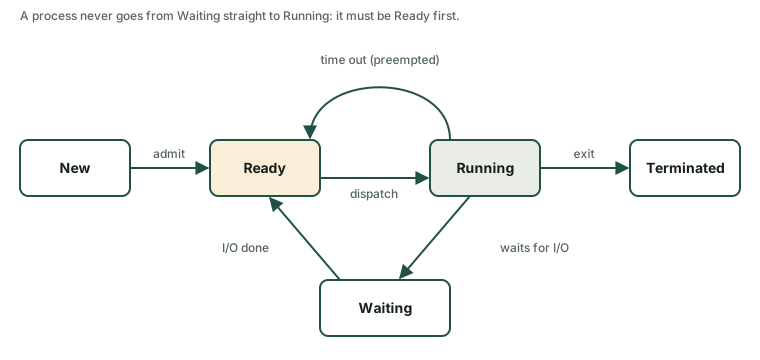
Sección titulada «5. States of a process»A process does not use the CPU all the time. A CPU core can run only one process at a time, and a process often has to wait for a disk, the network or the user. So a process changes between states.
| State | Meaning |
|---|---|
| New | The OS is creating the process (PCB and memory). |
| Ready | It has everything it needs and waits for a free CPU. |
| Running | The CPU is executing its instructions. |
| Waiting (blocked) | It cannot continue until something happens, for example the end of a disk read. |
| Terminated | It has finished; the OS frees its resources. |
The valid transitions are:
- New → Ready (admit): the OS accepts the process.
- Ready → Running (dispatch): the scheduler chooses it.
- Running → Ready (time out): its time slice ended, or a more important process arrived. This is a preemption.
- Running → Waiting: the process asks for an I/O operation or an event.
- Waiting → Ready: the I/O operation ended. The process does not go straight to Running: it joins the ready queue and waits for its turn.
- Running → Terminated (exit): it finishes or the OS ends it.
When the CPU changes from one process to another, the OS makes a context switch: it saves the registers and the program counter of the old process in its PCB and loads those of the new one. The switch takes time in which nobody does useful work, so it must be fast and not too frequent.
Linux shows the state in the STAT column of ps:
| Code | State | Matches |
|---|---|---|
R |
Running or ready to run | Running / Ready |
S |
Sleeping, waiting for an event | Waiting |
D |
Sleeping and cannot be interrupted (usually waiting for the disk) | Waiting |
T |
Stopped (by Ctrl+Z or a signal) |
Suspended |
Z |
Zombie (see section 7) | Terminated, not yet collected |
After the first letter you may see more symbols: s (session leader), + (foreground process), l (many threads), < (high priority), N (low priority). So Ss is a sleeping session leader, like a shell waiting for you to type.
In Windows the Details tab shows Running, Suspended (the app is frozen by the system) or Not responding. Use the tab State machine of the lab to try all the transitions, including the impossible ones.
6. Foreground, background and signals
Sección titulada «6. Foreground, background and signals»In a Linux terminal, a command normally runs in the foreground: the shell waits and you cannot type until it ends. If you add & at the end, it runs in the background and you get the prompt back.
sleep 120 & # start in the background; the shell prints [1] and the PIDjobs # list the jobs of this terminalfg %1 # bring job 1 to the foreground# press Ctrl+Z # stop (suspend) the foreground jobbg %1 # let the stopped job continue in the backgroundkill %1 # end job 1Keys in the terminal: Ctrl+C asks the foreground process to end; Ctrl+Z stops it.
The OS controls processes by sending them signals. kill does not always kill: it just sends a signal.
| Command | Signal | What happens |
|---|---|---|
kill PID |
SIGTERM (15) |
Polite request to end. The program can save its work first. |
kill -9 PID |
SIGKILL (9) |
The kernel ends the process at once. It cannot be ignored. Use it last. |
kill -STOP PID |
SIGSTOP (19) |
Stops the process (state T). |
kill -CONT PID |
SIGCONT (18) |
Continues a stopped process. |
You can only send signals to your own processes, unless you use sudo.
You can also change how important a process is. In Linux the nice value goes from -20 (high priority) to 19 (low priority). Normal users can only make their processes “nicer” (higher number):
nice -n 10 ./long-task.sh # start with low priorityrenice -n 5 -p 4021 # change a running processIn Windows, right click on a process in the Details tab and choose Set priority. The classes go from Low to Realtime. Do not use Realtime for normal programs: it can freeze the computer.
7. Zombies and orphans
Sección titulada «7. Zombies and orphans»When a child process ends, the kernel keeps a small entry (its PID and exit status) until the parent reads it with a call named wait. A child that has ended but whose parent has not read its status yet is a zombie: it shows Z in STAT and <defunct> in COMMAND. A zombie uses no CPU and almost no memory, but it still takes a PID.
You can create one without writing any program. This command starts a process that launches a child and then replaces itself with sleep, a program that never waits for children:
bash -c 'sleep 2 & exec sleep 300' &sleep 5ps -eo pid,ppid,stat,cmd | grep -E 'sleep|defunct'After two seconds the first sleep has ended but nobody has collected it, so you see a line with Z and [sleep] <defunct>. Now try:
kill -9on the zombie: nothing happens. It is already dead; you cannot kill the dead.killon its parent (the PPID in the listing): the parent ends,systemdadopts the zombie and removes it at once.
An orphan is the opposite case: the parent ends first while the child still runs. Linux gives the orphan to PID 1, which will collect it when it ends.
A few zombies are normal and short-lived. Many zombies that never go away mean that the parent program has a bug. The tab Terminal of the lab lets you reproduce all of this safely.
Comprueba lo aprendido
Sección titulada «Comprueba lo aprendido»-
What is the difference between a program and a process? Give an example with a browser.
Answer
A program is a file with instructions; a process is that program while it is running, with its own memory, PID and state. If you open two browser windows as two instances, you have one program and two processes.
-
In which state is a process that has asked the disk for data? When the data arrives, which state does it go to?
Answer
It is in the Waiting (blocked) state. When the operation ends it goes to Ready, not to Running; the scheduler chooses later when it uses the CPU.
-
You run
sleep 300 &and thenkill -STOPwith its PID. WhichSTATletter willpsshow? How do you continue it?Answer
T(stopped). You continue it withkill -CONT PIDor withbg %1. -
ps auxshows a process withZinSTAT. Why doeskill -9not remove it, and what can you do?Answer
A zombie has already ended; only its entry in the process table remains, waiting for the parent to collect it. A signal cannot end something that is already dead. You must make the parent collect it, or end the parent, so that
systemdadopts and removes the zombie. -
Name two differences between a user process and a service.
Answer
A service runs in the background without a window and normally starts at boot (or when it is needed) under a system account; a user process is started by a person, usually has a window or a terminal, and runs with that person’s rights.
Glossary
Sección titulada «Glossary»| English | Castellano |
|---|---|
| process | proceso |
| program | programa |
| service / daemon | servicio / demonio |
| PID (process identifier) | PID (identificador de proceso) |
| PCB (Process Control Block) | PCB (bloque de control de proceso) |
| parent / child process | proceso padre / hijo |
| state | estado |
| ready / running / waiting | listo / en ejecución / bloqueado |
| transition | transición |
| context switch | cambio de contexto |
| preemption | expulsión (apropiación) |
| foreground / background | primer plano / segundo plano |
| signal | señal |
| zombie / orphan process | proceso zombi / huérfano |
| priority / nice value | prioridad / valor nice |
| startup type | tipo de inicio |
Esta web no usa cookies ni recoge datos personales. Tu navegador solo guarda, en tu propio equipo, algunas preferencias: el tema claro u oscuro, el estado del menú y, en los laboratorios, la última pestaña abierta y el tamaño de letra.